Blog
How to Use the Golden Rectangle Calculator
How the Golden Rectangle Calculator works, what each field means, and how example runs prove φ relationships in your browser.
By Golden Rectangle Calculator Team

Blog
How the Golden Rectangle Calculator works, what each field means, and how example runs prove φ relationships in your browser.
By Golden Rectangle Calculator Team
The live tool lives on the Golden Rectangle Calculator at #calculator. Enter a or b; outputs update with golden ratio math locally in your browser.
Formula
This article documents the Golden Rectangle Calculator you use for quick dimension checks. It is not a separate download; the math runs when the page loads.
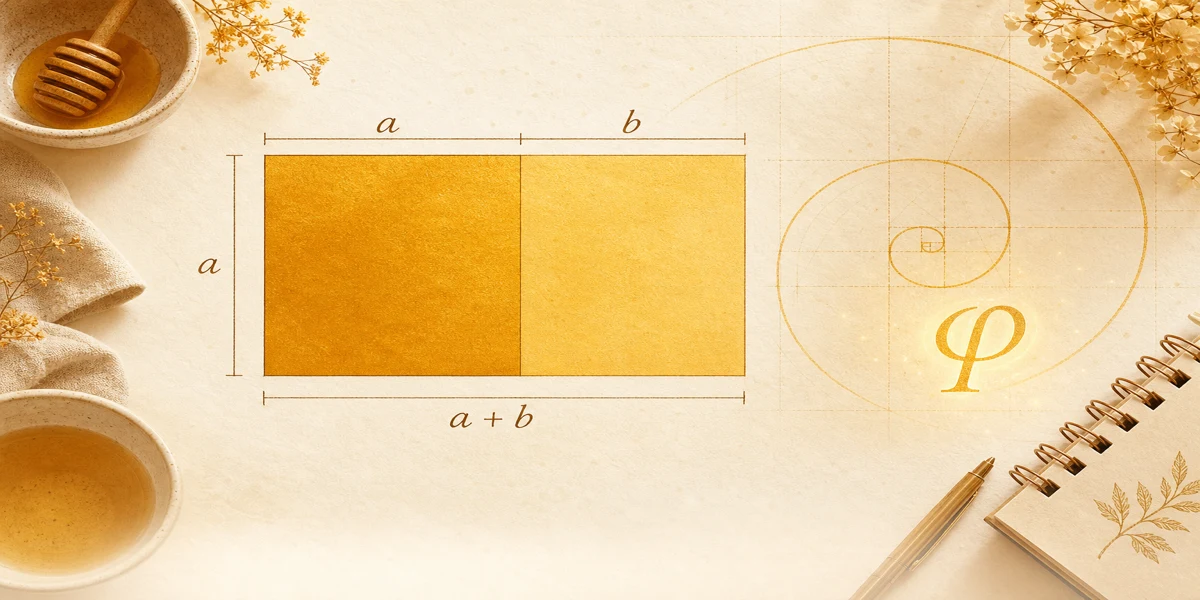
Fields mirror the diagram: a on the square, b on the strip, plus read-only a + b and area.
Because only one side is independent in a golden rectangle, typing in either editable field drives the other.
Nothing is uploaded. Reset clears values so you can run classroom examples back-to-back.
Side a, side b, sum a + b, and area a(a + b) are the four numbers people ask for most often on this site.
The diagram beside the fields shows why b is not labeled on the full bottom edge. That visual matches the {{linkA}}.
Validation is structural: positive entries always satisfy a ÷ b = φ. Zero or negative input shows an error instead of fake golden values.
For pencil-and-paper checks, compare tool output with the {{linkB}}; they should agree to the precision shown.
JavaScript multiplies and divides by the same φ constant you use on a scientific calculator.
Changing a triggers b = a ÷ φ, then recomputes a + b and area. Changing b triggers the inverse.
If you need symbol proofs before trusting automation, work through the {{linkB}} and compare each output to the tool.
Four clicks are enough for most homework checks.
Enter a = 5. The tool sets b ≈ 3.090, a + b ≈ 8.090, area ≈ 40.45 square units.
Verify: 8.090 ÷ 5 ≈ 1.618 and 5 ÷ 3.090 ≈ 1.618.
Change to b = 4 alone after reset: a becomes about 6.472, showing the tool works from either direction.
Bookmark the Golden Rectangle Calculator for repeat layout work during the week.
The calculator is the fastest way to explore golden rectangle dimensions with correct labels.
Trust but verify: run the ratio checks from the how-to article when grades matter.
Return to the home page whenever you need a fresh example or reset state.
Golden rectangle and Fibonacci sequence: how ratios approach φ, exact side math vs integer pairs, and checks with our free calculator.
Golden rectangle in design for web layout, logos, UI, and photography. Set width a + b from height a using φ and the free calculator.
Golden rectangle vs golden ratio: how φ differs from labeled sides, when to use each idea, and ties to the free dimension calculator.